Additional Verification for eRefund Enrollment/Changes
As part of our ongoing commitment to protecting your personal and financial information, we have added an additional verification step to the eRefund enrollment and change processes. This additional verification helps ensure that only authorized changes are made to your account, providing stronger protection for your funds.
How to Sign Up for eRefund
All you need to do is log on to the MyBARC portal and select the "Sign up" button found inside the "Sign up for direct deposit refunds!" box.
What Do I Need to Sign Up?
To enroll, you need two things:
- Your bank routing number
- Your account number
By far the simplest way to get both numbers is to look on a paper check.
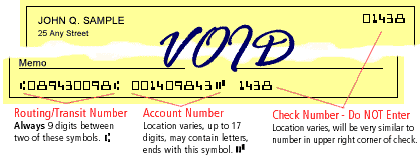
Please note that your account number is not the number on your Debit Card!
What Do I Do if I Don't Have a Paper Check?
We know that many students do not have paper checks with them. If you turn your debit card over, there will be a toll-free phone number on the back of that card. Call that number and tell them you are signing up for Direct Deposit. They will tell you the proper Routing Number and your Account Number.
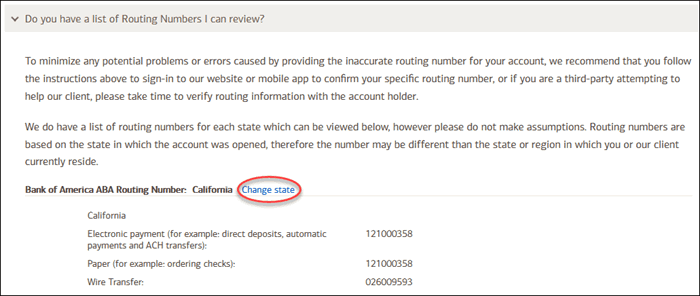
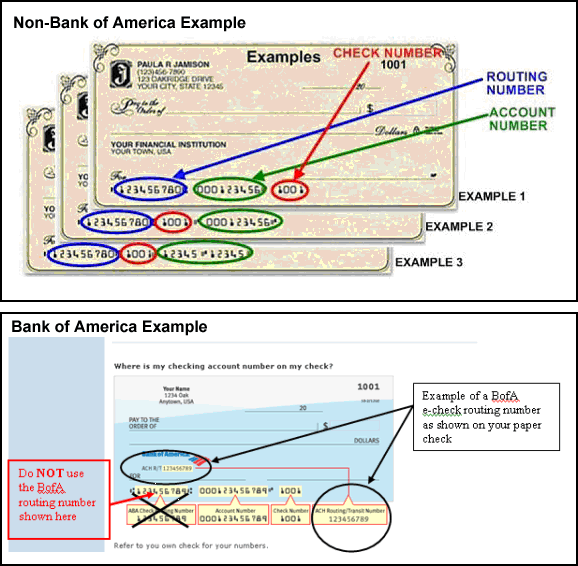
Bank of America uses different Routing Numbers for their e-check transactions.
Do not use the routing number shown on the bottom of a physical BofA check!
For information about locating the correct routing number for your account, please visit the Bank of America Routing Number FAQ page. Bank of America recommends signing into Online Banking to find your correct routing number, or see the section, "Do you have a list of Routing Numbers I can review" for a locator by state:
How to Sign Up
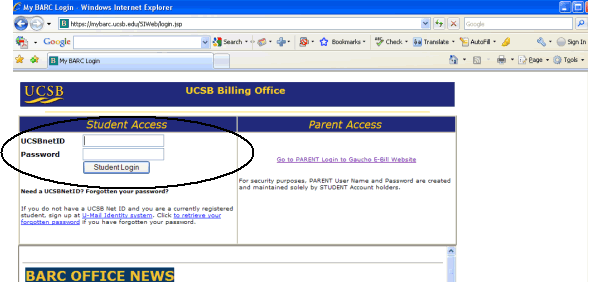
Sign on to the MyBARC login portal using your UCSB netid and password. Complete the MFA process with Duo Security on your device.
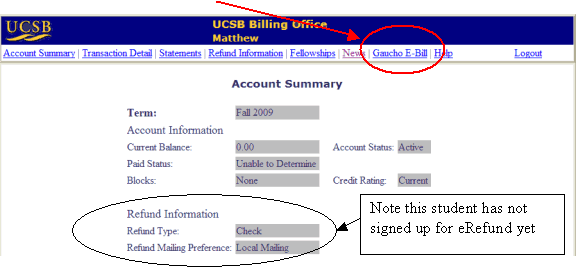
Select the link to "Gaucho E-Bill" at the top right corner of the screen that loads.
For additional protection, you will also need to complete the UCSB Single Sign-On process to log in to the Gaucho E-Bill interface.
Select the "Sign up" button on the Overview page.
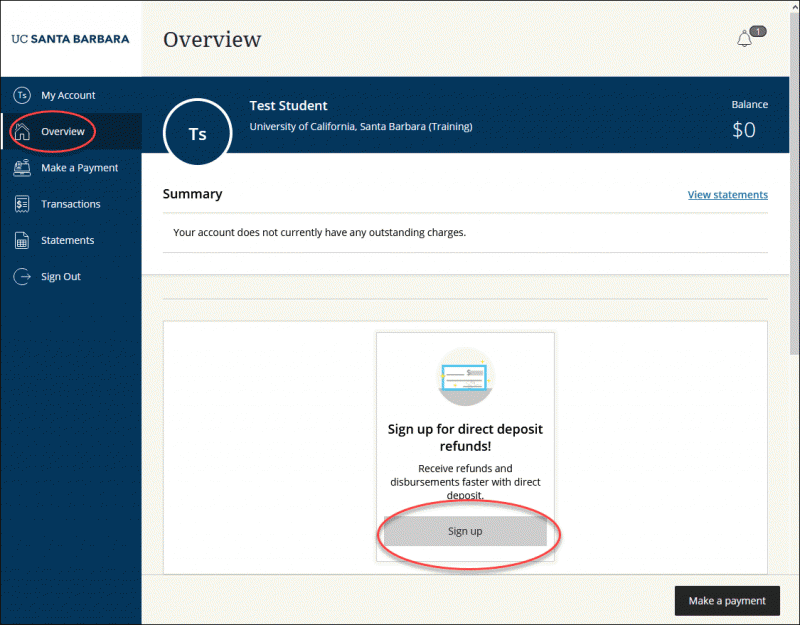
On the "Direct deposit refunds" screen that pops up, read the terms and conditions. Select the "I agree to these terms" checkbox, and click the "Continue" button.
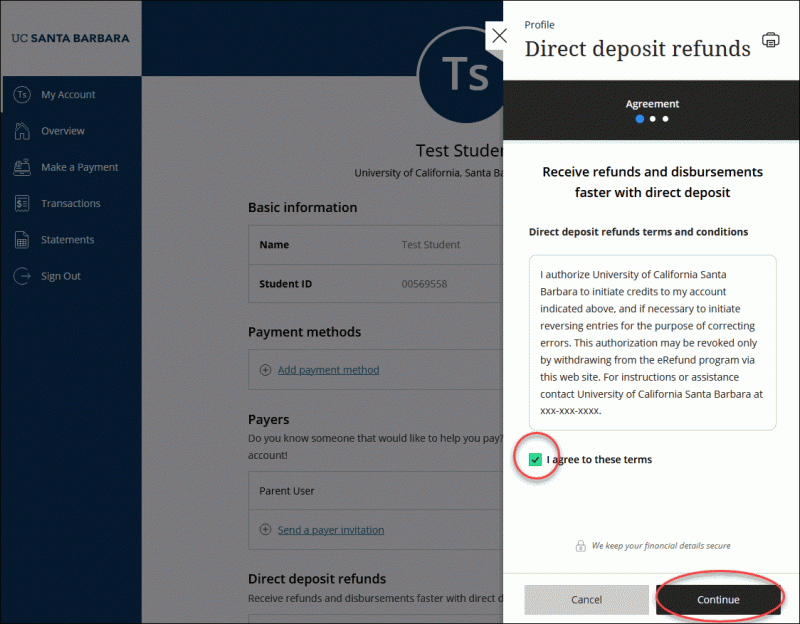
Complete the following steps:
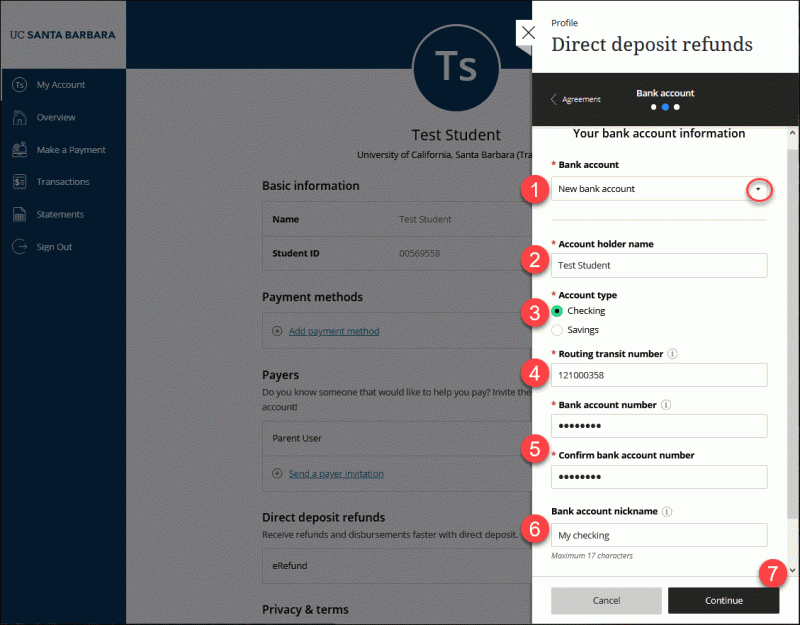
- Use the "Bank account" dropdown to select "New bank account" or choose one that you have previously saved to your account.
- Enter the name of the account holder.
- Choose the account type (checking or savings).
- Enter the routing transit number of the account you want to enroll in e-refunds. If you need an example of routing and account number locations on a check, click the "i" symbol:
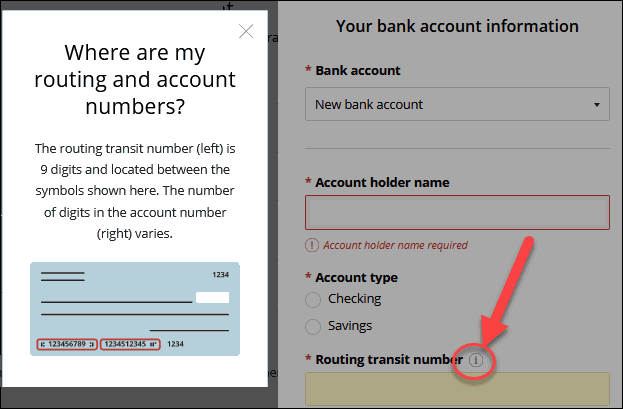
Here are some additional examples of Routing Numbers and Account Numbers:
- Enter your account number, and confirm it in the field below.
- Give the account a nickname for easy recall later (maximum 17 characters).
- Click the "Continue" button to go to the next step.
Review your information. If anything needs to be modified, click the "Change" link. When ready, click the "Complete" button and you are enrolled!
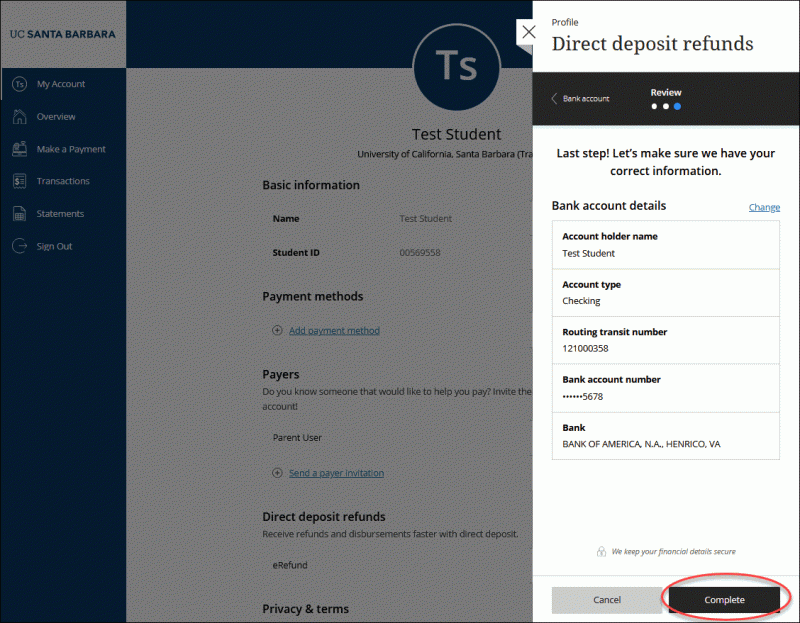
Direct Deposit eRefund Verification
-
A pop-up window will appear informing you that a verification code has been sent to your personal/alternate email address. This is sent to the address on file in the UCSB Directory.
Important: this code will expire in 15 minutes.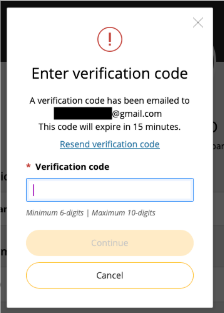
-
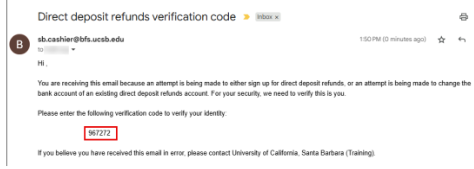
Retrieve the verification code from your personal/alternate email account. The notification email subject will be "Direct deposit refunds verification code" from sender sb.cashier@bfs.ucsb.edu. The message will contain a six-digit numerical code.
-
Return to your online account and enter the verification code. Then click the Continue button.
Verification Complete
When verification has successfully completed, your new bank account will be shown:

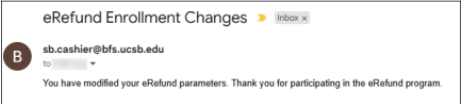
A confirmation email will also be sent from sb.cashier@bfs.ucsb.edu to the personal/alternate email address on file, with the subject "eRefund Enrollment Changes":
For support, contact the UCSB Cashier’s Office:
Email: cash.info@bfs.ucsb.edu
Phone: (805) 893-2177