
Amazon Business is a punchout vendor within Gateway, UCSB's procure-to-pay system. Using the official UCSB Amazon Business Prime account is the preferred method for purchasing. Use this page to learn about benefits, payment methods, and more.
Amazon Business Prime includes benefits to help you save time and make the most of your department budget, including:
- Free one-day and two-day shipping* on
 eligible items
 - Access to millions of additional products, available only to Business customers
- Access to certified small, diverse, local and sustainable businesses
- Business-specific pricing, including quantity discounts on eligible items
- Access to a specialized Amazon Business Customer Service team
- Real-time data to make smarter budgeting and purchasing decisions
* after PO issuance
Amazon Business Prime Customer Support
- Tip: Always include your Purchase Order (PO) number or Amazon order number in your message to speed up processing.
- General Email Support: Email Amazon Business Customer Support at amazonbusinesscs@amazon.com. (Note: the b2benterpriseexperts@amazon.com inbox will not be monitored after September 30.)
- Fastest Support (Live Chat & Click to Call): For inquiries relating to an order, transaction, charge, or shipment, use the Amazon Business Customer Support online contact page or call (866) 486-2360.
- Escalations: If an issue remains unresolved after using standard support channels, email our dedicated Amazon Business Account Representative at nrfleet@amazon.com.
- If additional assistance is needed when joining UCSB's Amazon Business account, contact Amazon Support for help joining the UCSB account or call 844-428-3060 to speak with a dedicated support team to walk you through the process.
All UCSB faculty and staff (including student employees) are invited to join the official centralized Amazon Business Prime account. Please be advised that you will be prompted to join the Amazon Business Prime account before your first requisition through the Amazon Punchout in Gateway.
There are a few ways to access the UCSB Amazon Business Prime account, depending on your permissions:
- Either through clicking the Amazon Business punch-out tile in Gateway.
- Invitation from UCSB, which comes as an email from Business@Amazon.com.
- Use the Single Sign-On (SSO) page for the UC Santa Barbara Amazon Business Prime account to access the account.
Account Scenarios: How to Register
To join the official UCSB Amazon Business account, you must first receive an email invitation from Business@Amazon.com.
Step 1: Look for your Invitation
Invitations are sent to your @ucsb.edu email address. Once received, click the “Accept Invitation” button within the email to begin the activation process.
Step 2: Follow the Official Registration Guide
Depending on how you have used your UCSB email with Amazon in the past, you will be prompted to follow one of three paths (creating a new profile, migrating a personal account, or merging an existing business account).
For a step-by-step visual walkthrough of these registration scenarios, please refer to the Amazon Business Registration & Migration Guide.
Payment When Purchasing Through the Punchout on Gateway
The default Amazon Business punchout payment method is Paying with Visa 0937. You cannot change payment method in the Amazon Business punchout.

Payment When Purchasing With a FlexCard on the Amazon Business Prime Website
While Gateway remains the University’s primary e-procurement system, FlexCard holders have the option to purchase directly from the Amazon Business Prime website when it is better suited for specific transaction types, such as:
- Gift Card Purchases: Utilizing the direct portal ensures a more streamlined transaction and delivery process for Amazon gift cards.
- Urgent Delivery Needs: When an item is required immediately and the standard Gateway requisition/PO timeline cannot guarantee delivery.
- Specific FlexCard Transactions: Any authorized business purchase that falls outside the standard Gateway workflow but is permitted under FlexCard policy.
Delivery
- If you access Amazon Business through Gateway, you will select your desired delivery address once you bring your Amazon Cart back into Gateway. Amazon will only use the address selected in Gateway.
- If you access Amazon Business Prime directly and pay with your FlexCard, you will be asked to enter a shipping address.
Orders Cancelled by Amazon
The order approval window in Gateway may lead to order cancellations by Amazon. Orders may be cancelled if the PO has not been approved within seven days, or if:
- The price increases by more than 20%.
- The original item is no longer available, and a suitable replacement cannot be identified/fulfilled.
- The item is not Prime-eligible and is expected to take longer than 15 days to ship.
When items ship, the Status changes from Open to Net Invoiced in Gateway. If an entire PO is cancelled by Amazon, submit a Gateway ticket with the PO number requesting the PO be closed/cancelled.
Amazon Business Customer Support: For the fastest resolution on specific order details, shipping status, returns, or general transaction inquiries, please contact the dedicated Amazon Business Customer Support team:
Preferred: In alignment with UC Procurement goals, Amazon Business policies prioritize search results for small, diverse, and local sellers, and items with sustainability certifications.
Restricted: Some categories where Prime benefits (free, fast shipping) do not apply are restricted. Restricted items will appear with a warning message at the top of the screen.
Blocked: In accordance with UC system-wide policies, the following product categories cannot be purchased through the Amazon Business punchout:
- Adult Products, Alcoholic Beverages, Tobacco
- Credit Cards, Gift Cards*, Postage Stamps
- Furniture (Policy exceptions apply outside of Amazon)
- Digital Goods & Content, Software, Video Games, Magazines
- Jewelry, Watches, Luggage
- Legal Agreement & Contracts, Services, Wireless Services
*Gift cards can be purchased by a FlexCard holder directly via the Amazon Business Prime website.
You can return many items sold on Amazon. Items shipped and sold by Amazon.com can be returned within 30 days of receipt of shipment. Visit the Amazon Online Returns Center to get started.
Start your return and get a return mailing label
- Go to the Amazon Online Returns Center.
- Follow the on-screen instructions to get a return mailing label and choose a return option (Refund, Replacement, or Exchange).
Note: Not all options will be available for all items. For items sold by an Amazon seller that aren't eligible for Amazon Prime from that seller, you will see "Submit Return Request". The seller reviews the return request before issuing a refund or replacement. If you don't receive a response within two business days, you can submit an A-to-z Guarantee claim. For more information, read about Amazon A-to-z Guarantee Protection.
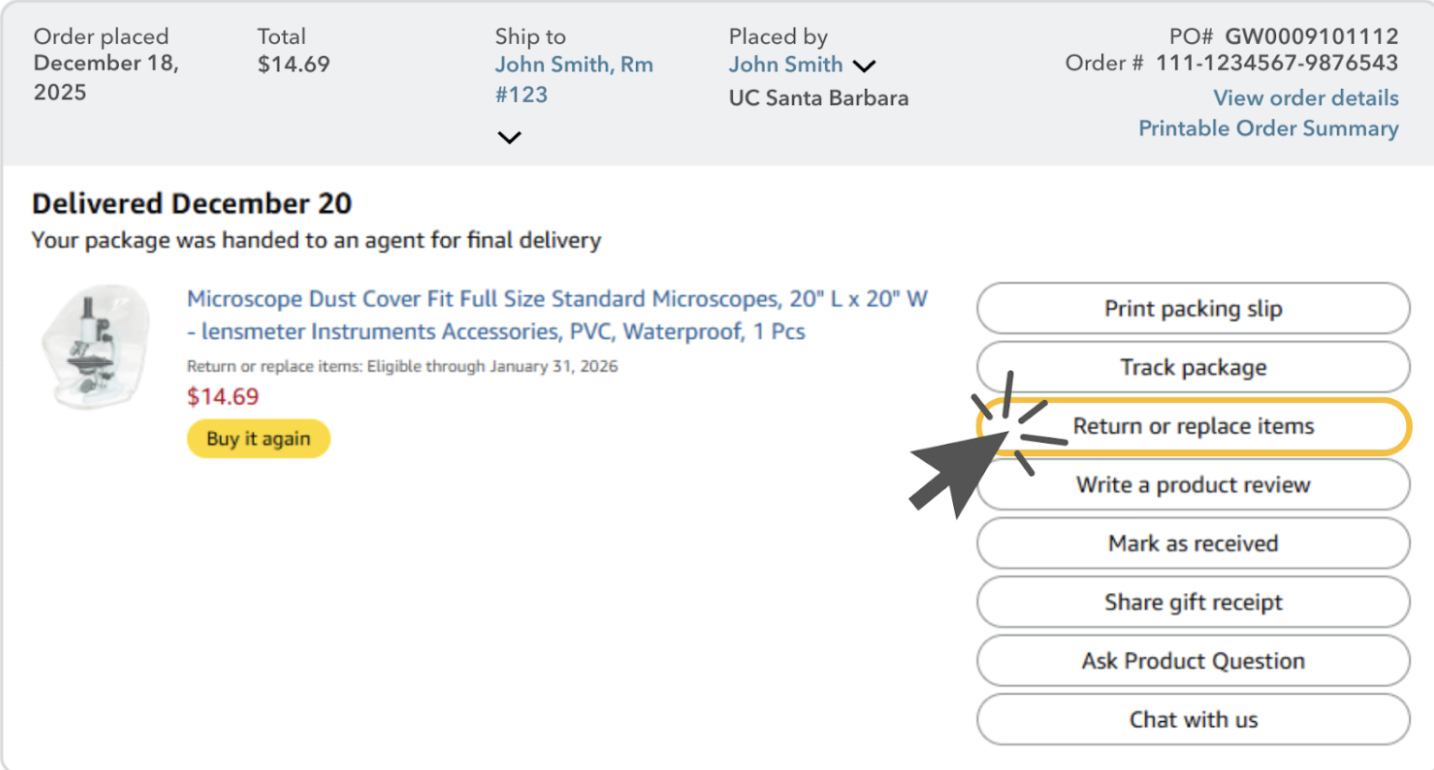
Orders can be returned via different options:
- If order is being returned via USPS you can drop off at UCSB Mail Services between 8:00am and 4:00pm or the Goleta Post Office.
- If the order is being returned via FedEx, UPS, DHL, etc. please take to your department pickup location.
- If available when initiating your return, Amazon fulfilled items can also be returned at the Amazon@IslaVista pickup point located at 6533 Trigo Road.
Prepare and ship your return
After you've completed the steps above:
- Print your label. If you select a shipping option that requires a return label, it will be e-mailed to the e-mail associated with your Amazon account and accessible from the Amazon Manage Returns page. If you don't have access to a printer, do one of the following:
- Send your label to a friend to print. Go to the Amazon Manage Returns page, click Print mailing label and then Email it to a friend.
- Request one to be mailed to you. The label will arrive in 3 to 5 days. Additional charges for this service will apply. Go to the Amazon Manage Returns page, click Print Mailing Label and then Request Label by Mail.
- Prepare your package for return. Pack your item securely, inserting any paperwork that was included when you requested your return from the Online Returns Center. If you don't have the original product packaging, use a sturdy box and include padding such as packing bubbles or newspaper. Attach your return label to the package.
Important: If you need to return multiple orders, please don't consolidate returns. Return orders individually, using a separate return label for each order. - Ship your return based on the return shipping option you selected.
For more information on the return shipping options, read About Amazon Return Shipping. If you need to return a gift, read the Amazon instructions for returning a gift.
Note: At this time, product returns are limited to refunds only, and can only be initiated by the punchout user or administrator. If you want to re-order the item, you must go to the punchout and reorder.
| Question | Answer |
|---|---|
| Why am I being asked to join the UC Santa Barbara account? | The central UC Santa Barbara Amazon Business Prime account is the official channel for campus purchases via the Gateway punchout. Joining ensures you receive key benefits like business pricing, enhanced data reporting, and access to Prime shipping benefits. |
| I already have an Amazon.com account with my UCSB email. What happens? | When you access the punchout, Amazon will prompt you to transition this account. You will be required to change your consumer account email to a personal address before joining the UCSB Business Prime account. |
| I have a single-user Amazon Business account. Do I need to merge? | Yes, to utilize the full institutional benefits and ensure transactions flow through Gateway, your single-user account will need to be merged into the centralized UCSB Amazon Business Prime account. |
| Can I make work purchases on my personal Amazon account? | We encourage Amazon purchases to be made through the Gateway Punchout or directly on the Amazon Business Prime website. However, we understand that staff may sometimes choose to use a personal Amazon account to meet critical department business needs, such as due to urgent delivery requirements or specific promotional offers. |
| What do I do if I bought a Prime Membership with UCSB funds? | The UCSB Amazon Business Prime account includes an Enterprise Business Prime Membership that covers all authorized users. This coverage applies when you access Amazon through the Gateway punchout. Since you are already covered by the University’s plan, you should cancel any individual Prime membership purchased with university funds to receive a refund. How to cancel and receive a refund:
|
| What do I do if I bought a Prime Membership with personal funds on my @ucsb.edu Amazon account? | If you are using your UCSB email for your personal Amazon account and purchased a Prime Membership with your personal credit card, the membership will follow the payment method. You will want to follow Scenario B under registration to split off your order history and Prime Membership to a personal account that is not already being used on Amazon. |
| Can I place an order directly on the Amazon Business Prime website? | While all UCSB employees can shop on Amazon via the Gateway punchout, direct login access on the Amazon Business Prime website is reserved specifically for FlexCard holders. To log in directly, you must be a registered FlexCard holder and have been added to the dedicated FlexCard subgroup within the University’s Amazon Business account. |
| Question | Answer |
|---|---|
| What is the process for buying gift cards from Amazon? | Gift cards should be purchased by a FlexCard holder directly via the Amazon Business Prime website. This direct access method is optimized for gift card procurement and helps avoid the technical limitations sometimes encountered when using the Gateway punchout for these specific items. |
| Is the URL for a product the same in Amazon Business as it is in the consumer site? | No, the URLs are different. You can search for the product in both sites by the ASIN number in the product description. |
| How do I pay for my purchases through the Gateway punchout? | Payment is made using the University's Ghost Card (Visa 0937), which is the default payment method in the punchout. Do not enter or save your personal payment or FlexCard information in the punchout. |
| When is the Ghost Card charged? | The Ghost Card is charged by Amazon only when the item ships, not when the PO is issued in Gateway. |
| Can I use my FlexCard for purchases? | Yes. Your FlexCard can be used for purchases on the official UCSB Amazon Business Prime Account when purchasing directly on the Amazon Business Prime website. If you use your FlexCard directly, all transactions are expected to adhere to all FlexCard policies and reconciliation requirements. However, if purchasing through the Gateway punchout, payment is processed via the University's Ghost Card. |
| What if I have pending orders appearing under “Your Orders” even though they have not been approved and sent to Amazon? | Any order subject to an approval workflow will not be processed until final approval. The order will remain in your order history for up to 14 days as “pending” until Amazon receives approval confirmation. Once approved you will receive an email confirmation. If the order is not approved within 14 days, the order will be cancelled and you will be notified via email. If the cart was cancelled and you still need the items, you will need to submit the order again for approval. |
| Question | Answer |
|---|---|
| What shipping options are available? | The UCSB account includes free one-day and two-day shipping on all Prime-eligible items as part of our Business Prime benefits. |
| How will I know when I will be receiving an order? | The requisitioner will receive a confirmation email that will state the items ‘Estimated Delivery Date’ (i.e. , Feb 10, 2026 - Saturday, Feb 11, 2026) and ‘Your Shipping Speed’ (i.e. Two Day Shipping). |
| Are there limitations for when items are delivered? | Amazon Business Prime purchases through Gateway will not be delivered on the weekends or on major holidays. The estimated delivery dates during the check-out and the email confirmation will be adjusted to account for this. Note: the delivery timeline for 3rd party sellers may vary. |
| Why once I place my order that is eligible for free 2-day shipping does it not come in the 2-day delivery window? | Amazon Business Prime will fulfill your order once it has gone through the approval workflow in Gateway. Once your order is approved, it will be sent back to Amazon to fulfill, and that will start the 2-day delivery window, assuming it does not fall on a weekend or holiday. |
| How do I track my Amazon Business package? | Follow these three easy steps to track your Amazon Business Package:
|
| What should I do if an item arrives damaged or is incorrect? | Call Amazon Business Customer Support immediately at (866) 486-2360 to initiate a return or replacement. They handle all logistics related to returns, refunds, and exchanges. |
How do I share user feedback?
We value your input! We want to hear what you like and where we can improve. Email your feedback to the Gateway help team at Gatewayhelp@bfs.ucsb.edu.